Outcome
What you will make
Prepare a clear engraving proof, inspect the important detail and export a file you can test on scrap material before committing the real piece.
Before you start
- A photo you own or have permission to reproduce—or the built-in Makers Army demo
- A modern browser; a free account for tool downloads and exports
- Your machine and material guidance, approved scrap material and a safe testing setup
- A place to record image-prep choices and actual physical test results
Your goal: a proof worth testing, not a guaranteed engraving
A good engraving file starts with a readable image and ends with a controlled material test. This guide gets you through the digital half: keep the original, prepare a grayscale proof, inspect the detail that matters, choose an export and write down what changed. Then test it on scrap before committing the real piece.
Image Preparation is free. A free Makers Army account is currently required to preview, adjust, download or export with Image Preparation. The demo proofs on this page can be viewed without signing in. The printable test log linked on this page downloads directly.
The step-by-step proofs use Makers Army’s own demo source and actual processor outputs. Nothing on this page is a photograph of a physical engraving, and no physical test result is claimed.
1. Choose a photo with information you can actually use
Keep an untouched original in a separate folder. Use a photograph you own or have permission to reproduce; a downloadable image is not automatically permission to engrave or sell it.
Look for a sharply defined subject, useful separation between light and dark areas, and enough pixels for the intended size.
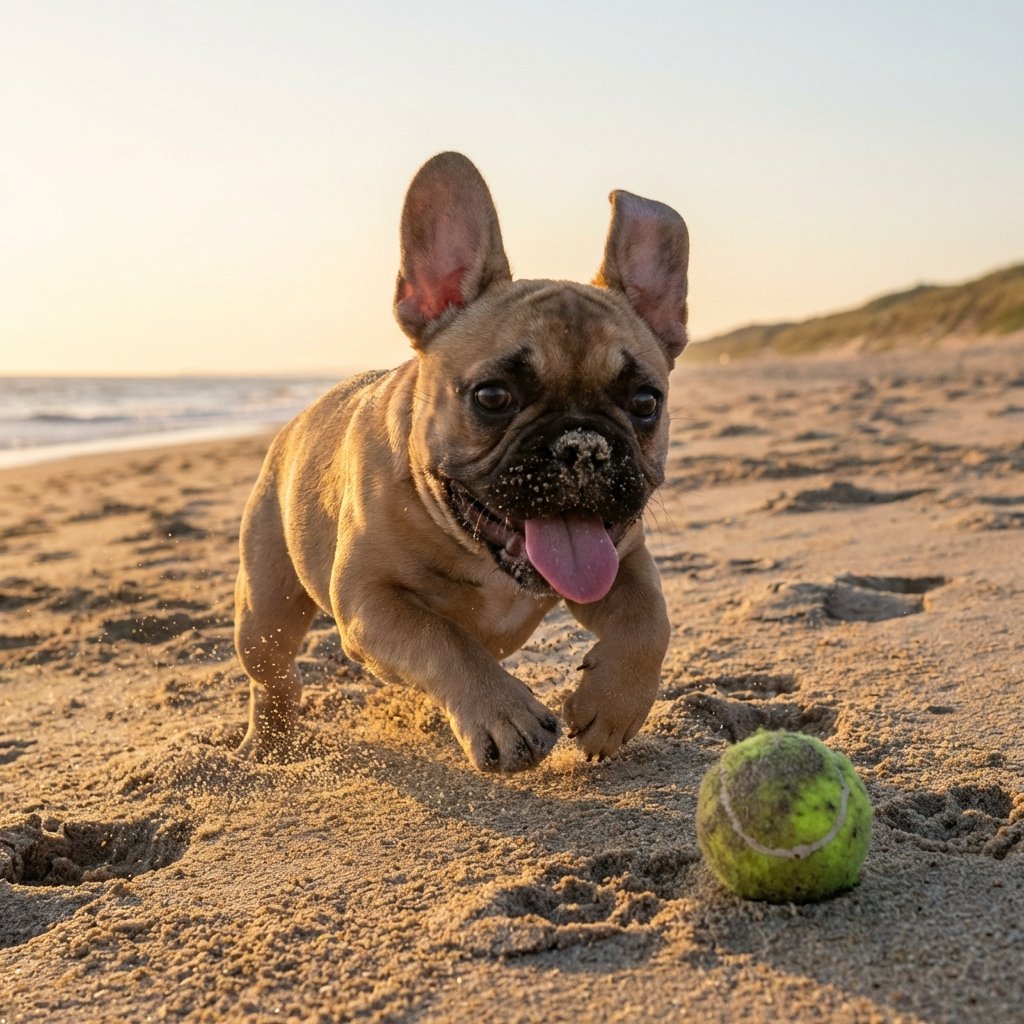
Detail crop / same source, enlarged—not enhanced
Do this / inspect the full-size file: for a pet portrait, check the eyes, nose, fur edges and the boundary between the animal and background. If those details are already smeared or lost, adding contrast will not bring them back reliably.
Avoid screenshots of small thumbnails, heavy compression blocks and subjects buried in a busy background. Crop or simplify a copy in your usual image editor before uploading if necessary. Do not stretch a small image to make it look higher resolution. Choose the final physical size in your machine software later; pixel dimensions alone do not set engraving size.
2. Upload your source—or learn with the demo first
Open Makers Army Image Preparation. Choose Upload image, or use Try an example to load the same demo used in this guide. The tool accepts PNG, JPG, WebP and GIF uploads up to 20 MB and rejects images above 40 megapixels. For an animated GIF, this workflow is a still-image preparation, not an animation export.
Allow the first preview to finish. The fitted preview is useful for the whole composition, but it is not a full-resolution physical proof. The tool processes a reduced preview for editing and processes the source resolution again for download.
Guide diagram / the digital workflow
Original photo
Keep an untouched source.
Browser proof
Auto → inspect → adjust one choice.
Exported test file
Free account → export → inspect in machine software.
Image processing runs on Makers Army’s private image service, so your image is sent to it while you work. Do not assume uploaded photos are never retained: the current tool also keeps a resized JPEG copy of user uploads for private admin oversight. The built-in demo is excluded from that upload capture. Choose a source you are comfortable using in this workflow.
3. Use Auto to establish one baseline
Press Auto once. It analyzes a small copy of the photo for brightness and contrast, then proposes HDR/local contrast, detail enhancement and equalization choices. It is a starting point, not a material profile or a machine calibration.
Begin with Dithering → Grayscale so you can see tonal changes before adding a dot pattern. Keep your first Auto proof as version A in your notes. Auto does not set laser power, speed, focus, passes or ventilation; it has no physical information about your machine or material.
4. Compare the same detail and change one setting at a time
Choose Compare and move the divider over your three target details. Choose Prepared when you want an uninterrupted view of the output. In this step, the adjustment proof changes only Contrast from the Auto baseline; it is an example of a controlled comparison, not a recommended machine setting.
Do this / choose the control that matches the problem:
- HDR / local contrast and Tone mapping: review separation in light and dark regions. Watch for a harsh, unnatural boundary around the subject.
- Detail enhancement and Clarity: review small edges and texture. Stop if noise or bright outlines become more obvious than the useful detail.
- Equalization: review tonal distribution. Keep it only if important regions become easier to distinguish.
- Contrast: review light/dark separation without sacrificing either end of the range.
- Smooth detail or Reduce noise: review distracting texture against the fine detail you need to retain.
- Invert colours: reverses the image tones. Use it only when your destination workflow calls for inversion, and check whether that software is already inverting the image.
Do this / one change: move one slider, release it and wait for processing to finish before judging the new preview. Write down the control and value, then compare the same detail again. If the change does not help, return to the baseline rather than stacking another adjustment on top.
5. Choose grayscale or dots deliberately
Grayscale preserves a range of tonal levels. Choose it when your machine software and intended engraving mode support a grayscale image workflow. How those levels become laser output depends on the destination software and machine—not on this preview alone.
Floyd–Steinberg and Atkinson convert the prepared image to black-and-white pixels using different error-diffusion patterns. Their dot textures are different ways of representing tone, not guaranteed upgrades. Compare the face, highlights and background, and watch for small details becoming isolated dots or merging into solid black.
When dithering is enabled, Dot threshold changes the black/white decision. Record the method and threshold together. Keep all enhancement choices fixed when comparing grayscale with a dithered version. The proof in this step uses Floyd–Steinberg with the same Auto enhancement choices; its dot pattern is actual digital output, not a simulated engraving on wood.
Check your machine software’s image mode before import. Avoid applying another dithering pass blindly to an already dithered file. Test whichever combination your manual supports, and record both the file’s preparation mode and the destination software’s mode.
6. Export the file that fits the next job
Choose Export format, then Download. You will be asked to log in or create a free account if you are not signed in. The tool preserves your image and settings through that sign-in flow; after returning, use the continue-download action when shown. Processing and exports have no charge.
Guide decision diagram / what does the next job need?
Keep photographic tones
PNG
Lossless raster; check destination support.
Destination requires JPEG
JPG
Raster copy; inspect compression and fine texture.
Deliberately need paths
SVG
Thresholded black/white trace; inspect fills versus cuts.
Keep versions + settings
ZIP
Archive package; not a machine program.
| Format | Choose it for | Check before using it |
|---|---|---|
| PNG image | A lossless raster proof; a useful starting choice when your machine software accepts PNG | Imported pixel dimensions, physical size, tonal mode and whether the software resamples or dithers it |
| JPG image | A raster copy when the destination needs JPEG | Compression can change fine texture; reopen and inspect the saved file rather than assuming it matches PNG |
| SVG vector | A thresholded, traced black/white shape result when you deliberately need vector paths | Inspect the live vector preview, then the exported paths; tracing is not the same as retaining photographic grayscale |
| ZIP export package | Keeping the source and prepared versions together for a repeatable job | Contains original, prepared and inverted PNGs, a traced SVG and settings.json—not a machine program |
For SVG, use Vector threshold, Curve smoothing and Remove speckles deliberately. Too much smoothing or speckle removal can erase important detail. A photo trace may contain many small shapes; inspect it in the destination software and confirm whether those paths will be filled/engraved or treated as cutting outlines. Do not send an unchecked photo trace as a cut job.
The ZIP’s settings.json records image-processing settings. Record the vector controls separately if you need to reproduce that trace: those controls are not included in that settings object. The inverted PNG is an alternative version, not an instruction to invert every project.
7. Turn the proof into a controlled scrap test
The optional Laser Photo Test Log is a sheet for recording a scrap-material test. Use it to keep the source, image-prep choices, actual machine values and observations together, so you can repeat a result instead of guessing what changed. It downloads directly; no account is needed for this worksheet.
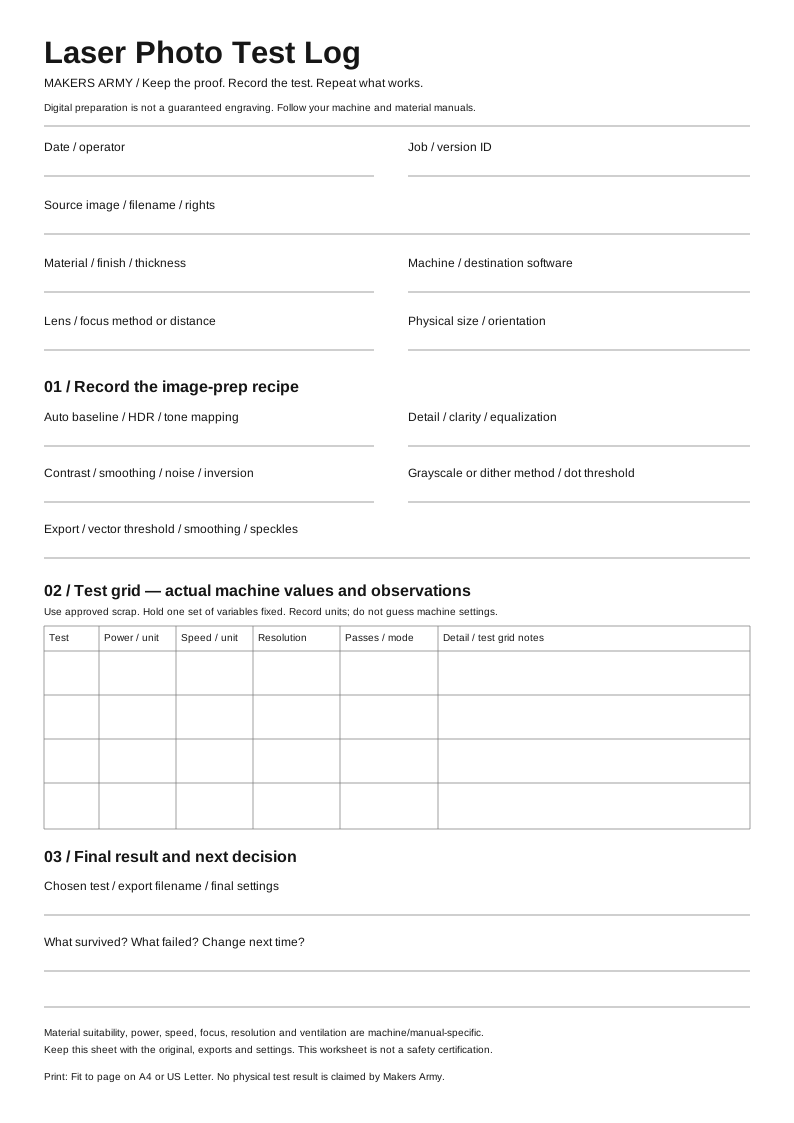
Do this / prepare the sheet: print using Fit to page on A4 or US Letter. Enter the source filename, material, machine, lens/focus, chosen image-prep settings and exported filename. Leave unknown machine settings blank until you have checked the machine and material guidance.
Use scrap of the same approved material and finish as the intended piece. Follow your machine/manual-specific guidance for material suitability, power, speed, focus, resolution, passes and ventilation or extraction. No universal settings are supplied here. Digital preparation cannot identify unsafe coatings or certify that a material is laser-safe.
Use the machine software’s supported test procedure or test-grid facility, if available. Hold image preparation fixed while comparing machine settings; hold machine settings fixed while comparing image versions. Label each sample so a successful result can be repeated. Do not infer machine settings from the appearance of the digital proof.
Record observations, not just “good” or “bad”: which detail survived, which highlight disappeared, whether the background overwhelmed the subject, and what you would change next. Follow your machine’s safety, supervision and ventilation instructions throughout; stop if the process is outside the approved guidance.
8. Keep the winning recipe with the job
Archive the original, chosen export, preparation values, any vector values, physical size, destination-software mode and completed test log together. Name versions clearly, for example portrait-A-auto.png and portrait-B-contrast.png. Record the actual tested machine settings and material identity—not values copied from an unrelated online project.
Only move to the real piece after the scrap test meets your criteria. If the test fails, identify whether the loss happened in the source, preparation, import or physical process before changing more controls. The most useful result of a first test is a clear next decision.
What this guide verifies—and what it does not
The browser workflow, Auto behavior, named controls and export contents were checked against the current Makers Army tool implementation for this guide. The visual outputs on this page are made with that processor and the Makers Army demo source. There is no claimed physical test, material result or guaranteed engraving quality.
Machine, material, power, speed, focus, resolution and ventilation settings remain specific to your machine, destination software, material and manuals. The printable worksheet is a recording aid, not a safety certification.
Continue with Image Preparation, or download the printable test log before you test. If you need to inspect traced paths, read Six Inkscape fixes for a stubborn SVG.
Practical finish checks
- The original is preserved and three important details have been compared
- Auto is recorded as a baseline and adjustments change one setting at a time
- Grayscale or dithering and the export format match the destination workflow
- The exported file is checked in the destination software at the intended size
- A labelled scrap test is recorded before committing the real piece